I'm still in a hiatus at the moment, but I may write the occasional blog post now and again (during the hiatus) like in this example. I will be giving a brief insight into the concept of Qubits which is the analogue to Classical Bits (1's and 0's). The only real difference between the two types, is that Qubits can be manipulated and controlled by the laws of Quantum Mechanics such as Superposition and Quantum Entanglement; the Spin states are also of great importance here since the control of the Spin will help create strings of information which are studied in Quantum Information Theory.
Before reading this post, I will assume you have some mathematical knowledge of Linear Algebra and Dirac Notation. Otherwise, I'll explain the concepts as a I write about the fundamentals of Qubits.
Firstly, let's look at the concept of Spin. Spin is a very important concept for Qubits. Spin is the angular momentum of a particle intrinsic (property of itself) to it's body. Spin is often regarded as a vector in three dimensional space, and being in the Up or Down state. The Down state has less energy in comparison to the Up state, and with Qubits, the Down state is usually set and then the Spin state will be changed to the Up state by electromagnetic radiation when necessary. The notation below represents a state vector called a Ket.
$$\vert A>$$
The Ket vector can be used to represent Spin states, and commonly denoted in the following form:
<u|A> for an Up state and <d|A> for a Down state. The lowercase a and d actually represent the probability amplitudes of the particle being in those two quantum states. Of course, the particle can be in a superposition of those two quantum states, but under observation this coherence is usually broken and the particle is measured as being in one quantum spin state. The probability amplitudes are typically complex numbers, which means they have a real part and imaginary part.
To gather the probability of spin we square these probability amplitudes to give the following notation:
$$\lvert d^2 \rvert$$ and $$\lvert u^2 \rvert$$ which will need to equal 1.
More specifically, the two quantum states are called basis vectors, and can be represented as |0> and |1>. Thee basis is simply all the possible vectors for a particular vector space. I will assume you will know the formal definition of a basis.
Another two important points are the Bloch Sphere and Quantum Entanglement. Quantum Entanglement means if we change the state of one particle then it will change the state of a another particle which is entangled with the first particle. This is a fundamental idea to Quantum Computing. It enables us to compute a larger number of bits simultaneously. For example, a Qubit has two basis states: |0> and |1>, or more correctly as: |00> and |11> since a Qubit can be in superposition of two states at once. Remember that when we measure or observe the state, it will be in one state. If we change one Qubit to |00> then the other Qubit will change to |00> too. There is equal probability of the Qubit being in the superposition of |00> or |11>.
A important point to remember is that, for every additional Qubit you add, the computing power in comparison to a Classical Computer is doubled like so:
$$2^n$$
n is the number of Qubits. If we had 3 Qubits, then classically this will be equivalent to 8 Classical Bits.
Typically, Qubits are represented as a Bloch Sphere, since Qubits exist in a two-dimensional Hilbert Space where only the superposition of two quantum states is possible. In later posts I will attempt to explain the Bloch Sphere in more depth.
This post was only supposed to be very introductory, and not go into depth about Qubits and Quantum Computation. In the future, I will build upon this post and go into more depth about Quantum Computation and other theoretical concepts.
Instead of allowing my blog to completely go 'dead', I've decided to write a short post regarding my hiatus which is going to be used to improve of knowledge mathematics related to physics and computer science. The reason being is because I plan to finally go to University this September/October and study for a degree in Computer Science, and then eventually a Ph.D since I would like to research into the theory of Quantum Computing. To make things easier for myself and to give me an advantage when I do hopefully go to University, I feel it's better to learn the Mathematics beforehand since they are so crucial for a real understanding of the concepts in Theoretical Computer Science and Physics; Theoretical Physics is very mathematically orientated.
At the moment, I'm doing Business at college which isn't exactly my intended career path, but I only chose the subject since the Mathematics courses and Computing courses (more like Microsoft Office) didn't teach anything relevant to what I needed to learn. For example, at my Sixth Form (I did one year before going to college), the Maths was very statistics orientated and didn't teach much else apart from that. The physics courses were only classical mechanics and split across two campuses (two different schools were merged into one due to financial and political reasons).
So, that leaves me in the position of learning everything at home, which I've done anyway with the knowledge expressed in this blog. In a few months time I should be posting again and contributing to forums. I'll still be active on Twitter if anyone follows me.
This is going to be a relatively long blog post, but I feel it may be useful since not much information is given on about how to find the IAT (Import Address Table) and EAT (Export Address Table) with WinDbg. There is some useful articles and blog posts on the subject, but I would like to add my own explanations and bring all the information together into one blog post. I'll start with a description of the purpose of the tables and their general structure.
The IAT is simply a array of pointers which are loaded by the Image Loader. The IAT is used primarily as form of a lookup table, which is used to call function present in other library modules (.DLLs). Since the executable module will not the the know memory addresses of the libraries and it's stored functions, it brings the in the purpose of the IAT. The IAT slots will be written with memory addresses by the linker.
The IAT is part of a larger data structure called the _IMAGE_IMPORT_DESCRIPTOR, which also contains another lookup table called the INT (Import Name Table), which is identical to the IAT.
The OriginalFirstThunk points to the Import Name Table and the FirstThunk points to the Import Address Table. We can find these in WinDbg, but it may take a little detective work to do so. We need to find the base address of the current image (executable module) and the address of the Import Directory, which is simple with the use of the !dh extension.
Using the dd command to dump the memory addresses of the Import Directory, we can see the relevant members mentioned earlier.
000220e8 is the address of the OriginalFirstThunk and the 00022330 is the address of the FirstThunk. Again, using the dd command we can dump these addresses using WinDbg.
The addresses shown are for the INT, and by using the dc command on one of the selected offsets with the base address, you will be able to view the name of the function. The current example didn't produce much, since the program I was using was a very small program with one or two libraries.
We can display similar information with the FirstThunk, and I personally prefer using the FirstThunk since we can use the ln command with the address to find the exact function, which will be displayed cleanly with WinDbg.
Using the ln command, we can see the similar function name which was roughly shown with the INT:
We can use the !dh extension to load the PE Header Sections for a desired module, and then view the address of the IAT.
As mentioned before, since the IAT is a array of pointers, we can use the dps command to dump pointers with symbol information if provided.
This is only a small subset of the IAT, you can adjust the number of functions dumped by changing the dps parameters.
Now, we need to explore the EAT which is going to be a little more difficult to explore using WinDbg than the IAT. The EAT works in the same way as the IAT, apart from the library will be exporting the functions to the image executable, in which the program will import into the IAT.
We need to investigate the Export Directory which is a IMAGE_EXPORT_DIRECTORY data structure, used in the following format:
The AddressOfFunctions is the field which we are most interested in since this is the EAT. It also contains the RVAs (Relative Virtual Address) of the exported functions to be used by the PE Loader.
The AddressOfNames and AddressOfNameOrdinals are loaded alongside each other, to provide a linkage between the address of the function and the name of the function. The AddressOfNames is a pointer to a array of function names, and the AddressOfNameOrdinals is a pointer to a array used to index into the AddressOfFunctions to obtain the addresses for the function names.
Going back to the Export Directory and WinDbg, we can dump the Export Directory using similar methods as before.
I've highlighted the important addresses from the IMAGE_EXPORT_DIRECTORY (Export Directory) structure. The 00051dc is the AddressOfFunctions, the AddressOfNames is the 000b672c and the 000b7c7c is the AddressOfNameOrdinals.
Using the dd command to dump the AddressOfFunctions array, and then using the da command to dump each element of the array, we can see which functions are stored there.
Now we can use the da command to dump the exported function.
We could repeat this process for every exported function, but that would take a considerable amount of time, and there are easier methods than using WinDbg.
PeStudio can also be used to find the addresses of the IAT and EAT, and if these tables contain any functions. It also includes the size of the table.
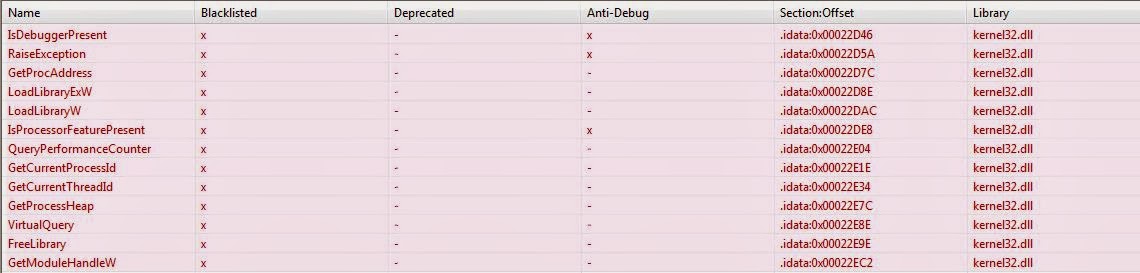
Under the Imported Symbols, we can view the functions imported by the image executable, and if they potentially have a malicious intent. I've only shown the kernel32 based functions, since that was the library we were investigating using WinDbg.
We can view similar information with Dependency Walker, and selecting the desired library.
The columns are explained here.
In the future, I'll look into the other PE Header Sections and look at IAT Hooking.
Additional Reading and References:
Inside Windows: An In-Depth Look into the Win32 Portable Executable File Format Part 2
The NT Insider: Debugging Techniques: Take One...Give One
Win32 Assembly Tutorials
In the last blog post, we looked at the structure of Hive Bins and Hives, in this blog post I will looking into Cell Indexes and Cell Index Mapping.
Cells are containers for information, such as keys, thus the reason for the different type of cells explained in the last post. In order to make the logical structure of the registry clearer, it's important for me to state how all the different parts I've been discussing fit together to form one complete picture of the Windows Registry.
Hives are split into Bins, and the Bins are then split into Cells. A Empty Bin will not contain any cells, whereas, a Bin with Cells will obviously contains Cells which will contain registry data. This brings around the point about Cell Indexes and Cell Mappings, and some of the data structures will can explore with WinDbg.
Cell Indexes are essentially pointers which link cells from different hives together, to make easier and more efficient for the Configuration Manager to load information which it is searching for. More specifically, the Cell Index is a offset into the cell with the subtraction of the size of the base block for the selected hive.
The tables which the Cell Indexes are used to index into, can be found within the Storage.Map member of the _DUAL data structure of the appropriate _HHIVE data structure. We can expand the _DUAL data structure and examine this member.
The _HMAP_DIRECTORY is a array of pointers to table entries, which then contain the information for a specific Block and Bin. The FreeDisplay field is used to for free cells within memory.
Since Hives are allocated from Paged Pool, they will need to be mapped since paged pool isn't guaranteed to be contiguous. This leads to the concept of Cell Index Mapping, which is very much the same as Virtual Address Translation on x86 systems; remember that x64 had a additional table of directory pointers.
Using the diagram above, it may become more apparent what the pointers within the mentioned data structures are being used to index into. As we can see, the Directory Index pointer is being used to point to the Hive Cell Map Directory, which is then used to point to the Cell Map Table with a Table Index pointer, and then the Byte Offset is used to point to the specific Cell within the Hive Block.
There is a additional bit which is either 0 or 1, and is used to determine if the Hive is Volatile or Stable, and which table type to begin searching with. This translation is used for Hives in memory. 1 is Volatile and 0 is Stable.
Directory Index = 10 bits
Table Index = 9 bits
Byte Offset = 12 bits
Since Hives usually reside on the hard disk, and are then mapped into memory, in order to avoid excessive consumption of the Cache Manager's address space. The number of mapped views for a hive is limited to 256 views. The LRU (Least Recently Used) views list is consulted when this has been reached, and when a new mapping is required because the Configuration Manager requires a hive to be mapped into memory. The LRU mapping will be removed from the list. This data structure is allocated with Paged Pool.
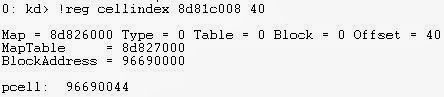
There is some interesting WinDbg extensions we can use to find additional information related to Cell Indexes such as the !reg cellindex extension.
The extension shows the virtual address associated with the Cell Index. The first address is the Hive Address and the 40 is the offset which we are looking for. I've used the SYSTEM hive in this example.
For additional information, I would suggest reading this thesis, which will be available on my One(Sky)Drive since I can't find the original download link. Just ignore the random pictures and other junk in my Public folder, the Ted Mosby picture is a inside joke about me.
Each Hive is divided into a number of allocation units called Blocks, the first block of a Hive is called the Base Block. The information which is stored within a Hive is then organized into Cells which contain active registry data such as keys, values, security descriptors and subkeys.
The Hive Blocks are allocated in 4096 byte allocation sizes, and are called Hive Bins. The Base Block may also be referred to as the Registry Header, with the other blocks being called Hive Bins. Each Hive Bin is then divided further into Cells as explained above.
A Hive Bin will have the hbin signature which can be found with WinDbg. Firstly, use the !reg hivelist extension, and then use the !reg viewlist extension with a desired Hive Address.
The !reg viewlist extension will list the Mapped Views for the selected Hive. I wasn't able to find a dump file which had any mapped views, therefore I won't be able to show you the steps completely. Once you have used the !reg viewlist extension, then use the db command with a desired view to view the contents of a bin.
The _HHIVE data structure seems to contain a Signature field and BaseBlock field as described earlier. Each Hive Bin contains a pointer to the next Hive Bin and the first Hive Bin. We can find free Hive Bins with the !reg freebins extension and the Hive address.
These Hive Bins are only really containers for Cells which hold registry information such as keys, security descriptors, subkey lists and key values. There a few different types of Cells:
- Key Cell
- Value Cell
- Subkey-list Cell
- Value-list Cell
- Security-Descriptor Cell
The Key Cell contains the registry key and may be called the Key Node. A Key Cell will contain the kn signature for Keys and kl for Link Nodes. Furthermore, the Key Cell will maintain timestamp information about the latest update to that key, and various Cell Indexes which will describe additional information.
The Value Cell contains information about the key's value, and will have a Cell Index into what the cell which contains such data about the key. The signature will be kv.
The Subkey-List Cell contains a list of Cell Indexes for Key Cells in which all share a common Parent Key.
The Value-List Cell is the same as above, but applies to Value Cells rather than Key Cells.
The Security Descriptor Cell will contain the ks signature and a reference count which maintains a count of the number of Key Nodes or Key Cells which share the Security Descriptor. This cell will contain a Security Descriptor.
We can view Cell data structures with the _CM_CELL_DATA and then using the -r switch to dump all the hidden sub data structures. The -r switch is really useful for data structures in general, especially since Microsoft won't document some sub fields fully.
Since we are the topic of keys, I thought it would be appropriate to look at the concept of Keys and how we can investigate into Keys further with WinDbg. We can firstly use the !reg openkeys extension, and then view any open keys. Please note that I've omitted the output of the extension to one Hive.
However, we can gather more interesting information by looking into a few data structures. Each key will have a Key Control Block (KCB), we can use the _CM_KEY_CONTROL_BLOCK data structure to view the information about the open key.
This is similar information to which can be found with the !reg kcb extension, you will need to use the !reg findkcb extension with the full registry path, in order to find the kcb address. However, with the open keys case, you can simply use the !reg kcb extension since the KCB address is already given.
The Configuration Manager maintains open keys within a table for fast name lookups, the table can be found with two global variables called CmpCacheTable and CmpHashTableSize. The CmpCacheTable is a pointer to a hash table which explains the _CM_KEY_HASH data structure within the KCB.
Each entry within the table is a pointer to the _CM_KEY_HASH data structure.
The NextHash field points to the next structure within the table.
In my next blog post I'll discuss Cells and Cell Index Translation.
The Registry is a key component of the Windows operating system, and it's always been recommended that you should never careless run Registry Cleaners or start to change keys or delete keys which do not fully understand the purpose of. You never to seem to find much information about the Registry in general, unless it's in Specialist blogs or computer science papers. In this blog post I hope to show how to explore the Registry using WinDbg and look at some of the internal workings.
The Registry tends to be referred less commonly as the Configuration Manager, and the Configuration Manager is the technical name for it. As the name suggests, the Configuration Manager mainly maintains the state of the configuration data for the operating system and any programs which may have been installed. The Registry is divided into several sections called Rootkeys. The Rootkeys are defined as follows:
- HKEY_LOCAL_MACHINE
- HKEY_CURRENT_CONFIG
- HKEY_CLASSES_ROOT
- HKEY_CURRENT_USER
- HKEY_PERFORMANCE_DATA
- HKEY_USERS
Each Rootkey has a number of Hives which are subdivided into Keys and Values. This can be seen when viewing the Registry with the Registry Editor.
The HKEY_LOCAL_MACHINE a important root key which contains other keys such as BCD (Boot Configuration Data), COMPONENTS, HARDWARE, SAM, SECURITY, SOFTWARE and SYSTEM. Any changes here will apply to the entire system.
The HKEY_CURRENT_CONFIG contains information relating to Hardware Profiles, which enables configuration driver settings. A Hardware Profile may change from boot to boot, and will be used by any programs which require it.
The HKEY_CLASSES_ROOT contains information for file extension associations, COM Class reregistration and UAC (User Account Control).
The HKEY_CURRENT_USER contains the configuration data regarding the locally logged on user. The Root Key is mapped to the Ntuser.dat file which is present on the hard drive. Some of the local configuration data examples include: Environment Variables, Network Settings, Software Settings and Session Information.
The HKEY_USERS contains data required each loaded user profile, and will be used by Winlogin to implement any specific user changes. This section will also contain keys relating to user security identifiers for that profile.
The HKEY_PERFORMANCE_DATA contains operating system and server performance counters, and will not be visible through the Registry Editor. These performance counters are only available through the Windows Registry API.
The HKEY is used to represent a handle to the rootkey. Now we have looked at the general logical structure of the Windows Registry, will need to examine it's actual implementation onto the hard disk. This is achieved through the concept of Hives, Cells and Bins. It is possible to be examine to parts of the Registry in Physical Memory.
The structure of a Configuration Manager Hive can be seen with WinDbg using the _CMHIVE data structure. It's a large data structure, and therefore I have omitted some of the fields.
The above data structure contains a larger sub structure called _HHIVE, which contains some very useful information. The _CMHIVE structure is allocated from paged pool, and has the pool tag of CM10. You can view this pool allocation information with !pooltag and !poolfind.
Using the !poolfind extension with the pooltag and specifying the pool type as paged pool with the 1 switch, we can see all the pool allocations for that specific pool tag.
A Hive is simply the on disk representation of the Registry, each one of these has it's own registry tree which serves as a root. The hives are then loads the Hives which can be found HKEY_LOCAL_MACHINE\SYSTEM\CurrentControlSet\Control\hivelist. These Hives are stored on the hard disk, and are then linked to the Registry file paths as seen below. Most of the hives reside in the System32 folder, whereas, the others will reside in the UserProfiles and Users folder.
Alternatively, we can view the Hivelist within WinDbg using the !reg hivelist extension. You may have noticed that the HARDWARE hive not does have a folder path, this is because it is updated every time the computer is booted, and therefore is only present within memory.
We can even view the current paged pool consumption of the Registry Hives using the !reg dumppool extension. Again I've had to omit some information due to the size limitations.
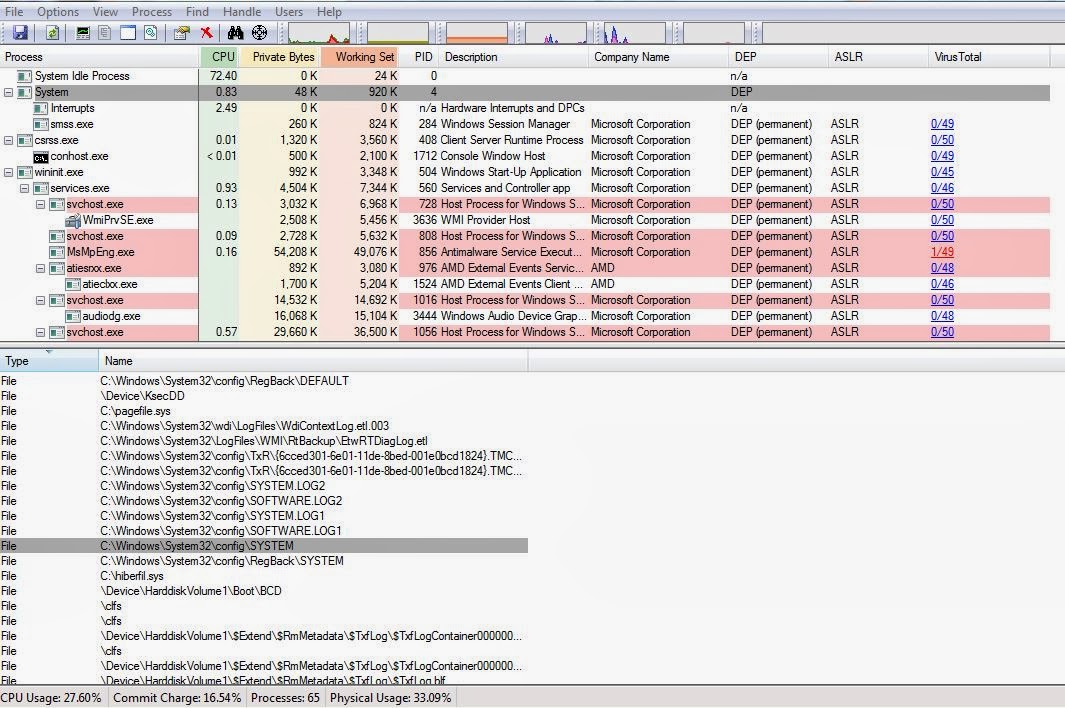
Using Process Explorer, and then selecting the System process, we can view the Hive Handles which are currently opened by the System Process.
Going back to the general structure of how Hives are organized, Hives are linked together within a doubly linked list, the Head of this linked list can be found with WinDbg, the address is 8336e44c on x86, I'm sure if there is any difference on x64.
We can also see this with the _CMHIVE structure and the HiveList field. The addresses within the linked list are all virtual addresses.
In the second part I have be taking a closer look at the structure of Hives and some more forensic analysis techniques.
As you largely know and can guess from the title of my blog, this is primarily a BSOD Debugging blog, and this will always be the primary aim of this blog. However, you as you already know I tend to post topics not directly related to debugging, and will post other topics which interest me like Theoretical Computer Science and Security.
I would like to make the following topics more abundant within my blog:
-Theoretical Computer Science
- System Security
- Windows Internals topics will be more tightly focused, which will be areas which you'll mostly need to know for debugging and security purposes.
- Debugging generally, for example looking at some of the common error messages.
I've chosen to write more things about Theoretical Computer Science, since it's something I would like to do as a career, especially the field of Quantum Computing, since it will combine my interest in Computer Science and Quantum Mechanics.
There's some great security tools which I would like to learn how to use more thoroughly, and these tools can reveal some detailed information about the operating system which isn't possible with other tools.
I'm also working on writing the Registry Internals blog posts, but I still need to get through the few papers I have on the subject.
If anyone has any other suggestions to what they would like to see more in my blog, then please say so.


.gif)


.gif)




.gif)